“Try to fix" Button: What It Does
Quickly resolve build errors and broken components without touching any code.
Last updated 10 months ago
What Is the “Try to fix” Button?
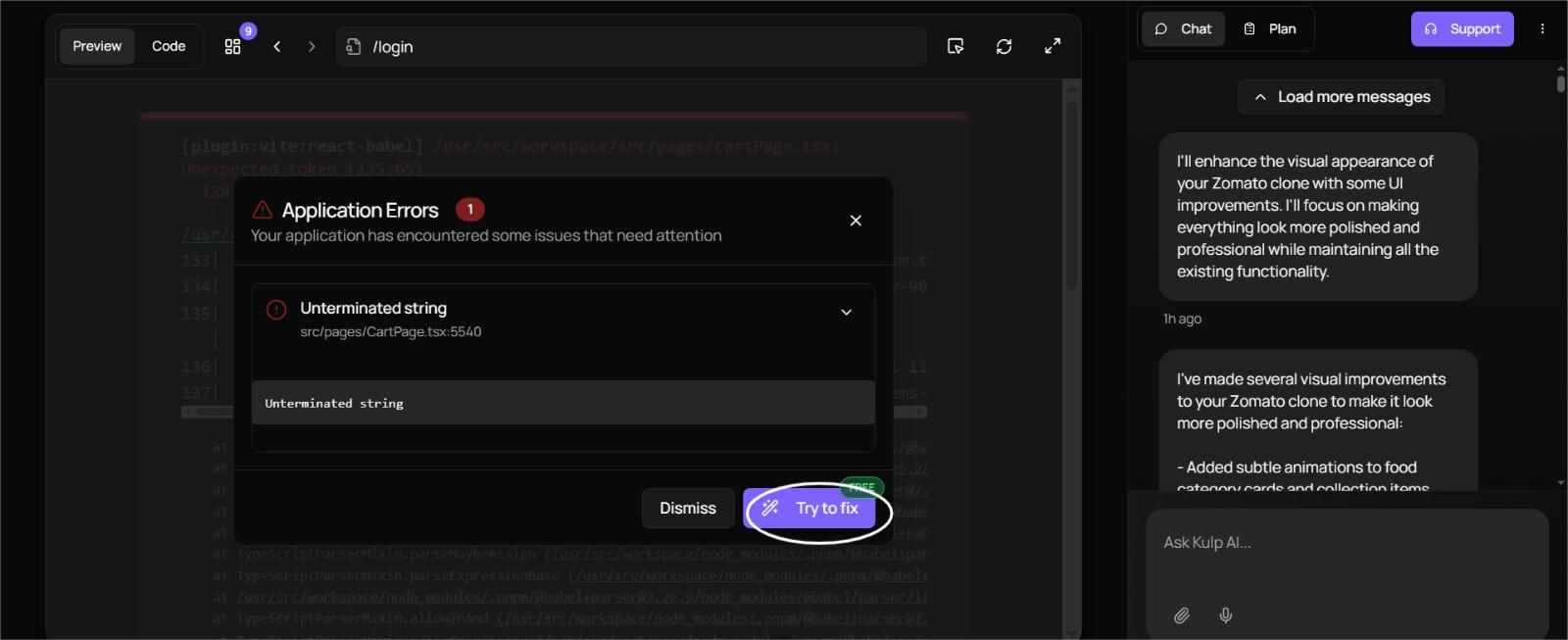
Whenever something goes wrong during your project build - whether it's a layout bug, code error, or integration issue - you’ll see it listed in the Error tab. Each listed issue will have a “Fix the issue” button next to it.
Clicking this button tells Kulp’s AI to:
Re-analyze the failed build step or component
Understand the context from your Plan and previous prompts
Regenerate only the broken part using a fresh AI pass
Apply the fix directly to your project - without changing unrelated sections
What It Can Fix
UI issues: Missing or misaligned components
Logic errors: Code that failed to execute or crashed
Integration gaps: Errors related to Supabase, Stripe, or other APIs
Broken features: A specific module or functionality that didn’t get built properly
When to Use It
Use “Fix the issue” when:
You’re seeing an error in the Error tab
A specific feature didn’t generate correctly
Something worked earlier but broke after a change
What It Won’t Fix
Incomplete or vague prompts
Missing features that were never requested
Conflicts caused by unclear instructions in earlier steps
For those, it's better to:
Enhance your prompt
Rebuild that feature
Use the Plan to clarify your intent