Debugging Errors in Kulp
Understand, resolve, and prevent build errors inside your Kulp projects.
Last updated 10 months ago
Where to Find Errors
All active issues during the build process appear under the Builder Issues tab at the top of your screen. This tab is your go-to place when something fails to generate or behave properly.
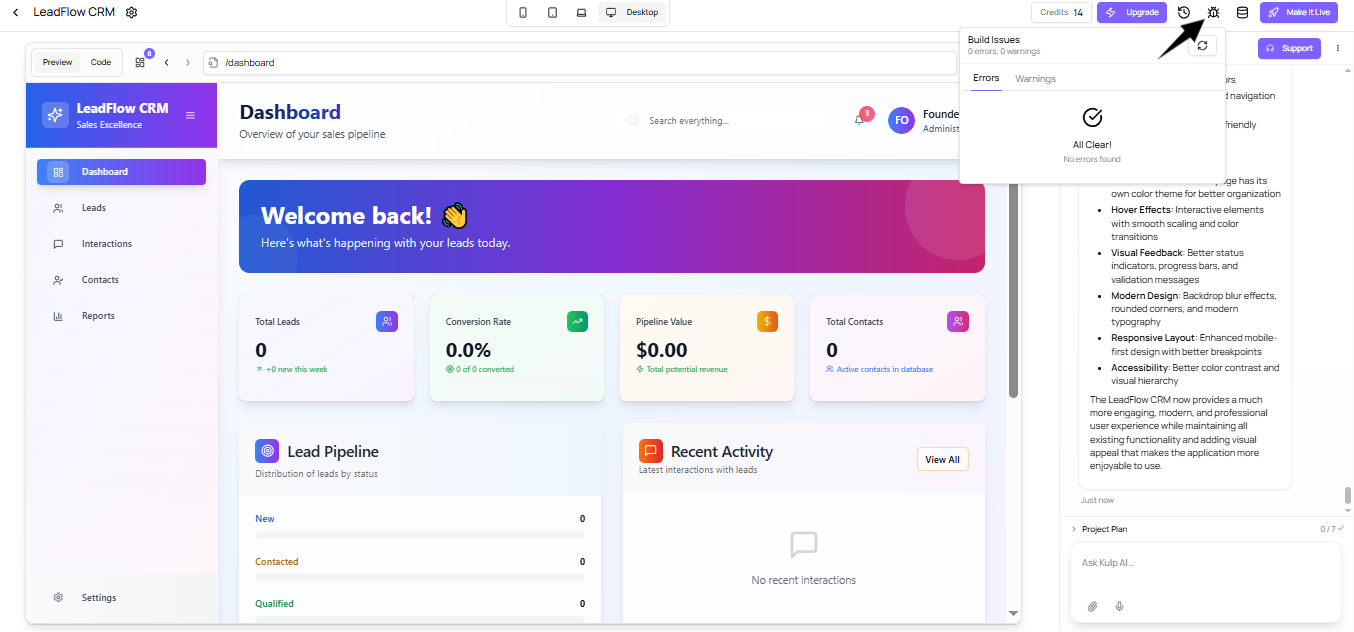
How the Error Tab Works
Error Source: Shows which feature or step caused the error.
Try to fix: The AI will automatically fix the issue on hand
Common Error Types and Fixes
1. Code Generation Failed
Why it happens:
Vague or conflicting prompt
Feature depends on missing logic
Fix:
Enhance your original prompt
Rebuild that feature step
Use “Try to Fix” in the Builders Issue tab
2. Broken Layout or Component Error
Why it happens:
The UI couldn't render properly due to missing styles or misused elements.
Fix:
Prompt again with specific layout instructions (e.g., “Make the login form responsive”)
Revert to the last working version
Rebuild just that component
3. API/Logic Errors (e.g., Supabase, Stripe)
Why it happens:
Integration settings missing or misconfigured
Required parameters not provided
Fix:
Double-check API setup in the Plan or Integration steps
Add detailed prompt instructions for how data should flow
If using Supabase or Stripe, confirm your keys/configurations are correct
4. Project Fails to Load
Why it happens:
A core page or route is broken
A recent feature added invalid code
Fix:
Check the feature just before the error occurred
Revert it if needed
Use “Try to fix” or regenerate that module with clearer intent
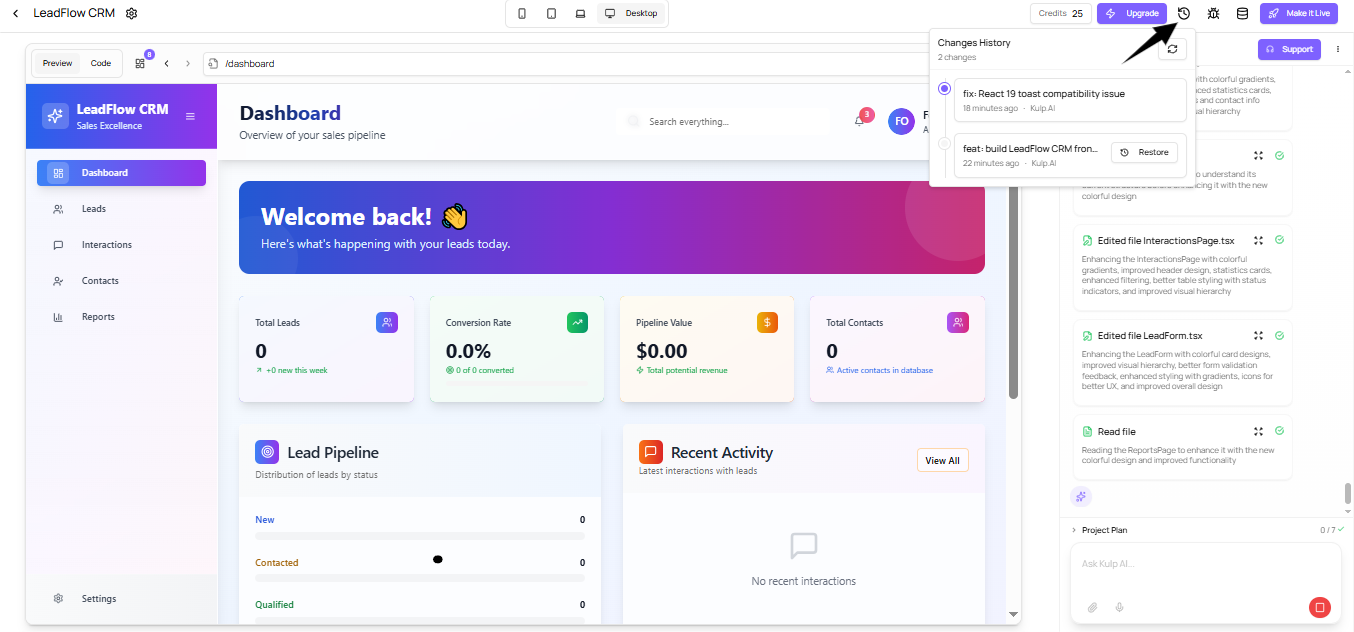
Revert & Retry
If a fix makes things worse or doesn’t help:
Use the Revert button to roll back the change
Prompt again with clearer structure or break the task into smaller pieces
Best Practices to Avoid Errors
Be specific in your prompts about what you want and how it should behave
Add one feature at a time - avoid loading too many prompts together
Use the Plan tab to review dependencies and structure
Let Kulp build core pages before diving into edge-case features